Call a Contract from Explorer
In the previous lesson you published the counter contract to Devnet. Now let's call its functions directly from Suiscan's GUI — no terminal, no code. Just a browser.
Prerequisites
- Completed Publish a Contract and have the PackageID on hand
- Slush wallet connected to Devnet
- Test tokens in your wallet (gas is required for function calls)
1. Open the Package in Suiscan
Open Suiscan (Devnet) in your browser.

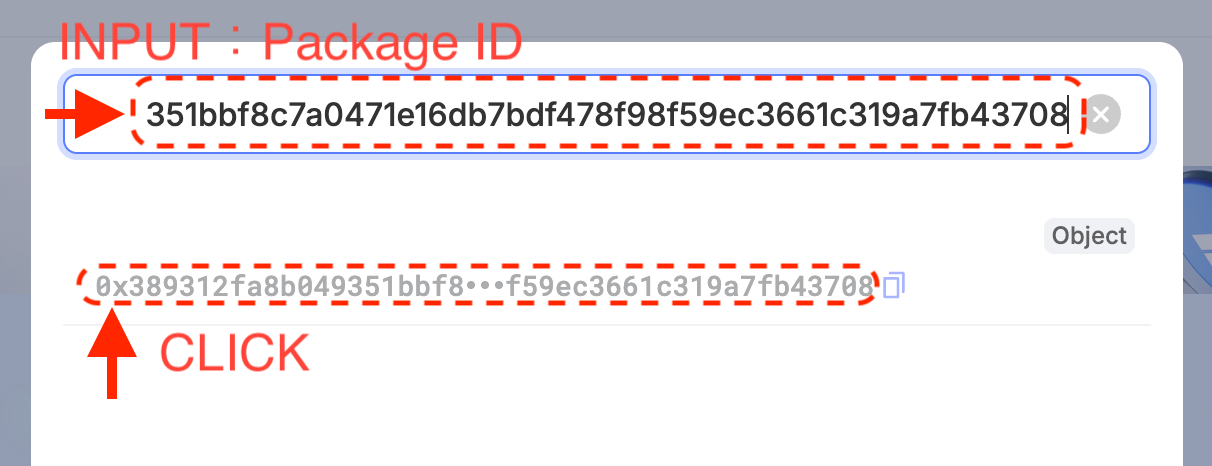
Paste the PackageID from the previous lesson into the search box and search.
Make sure to paste the Package ID, not your wallet address. The Package ID starts with 0x and was shown in the sui client publish output under Published Objects — it is different from your account address.
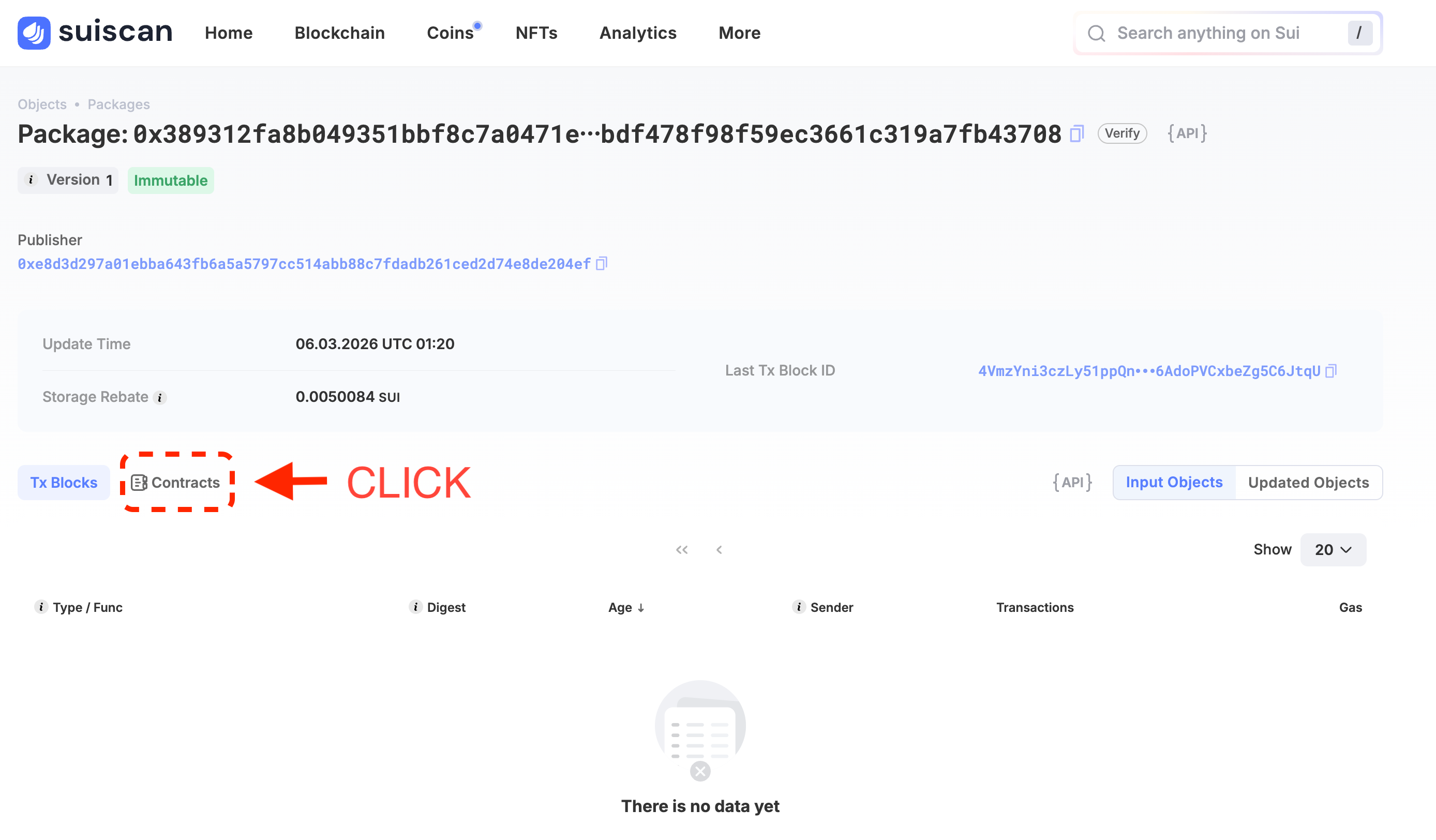
The Package page opens. You'll see a Contracts section listing the counter module.
2. Create a Counter with create
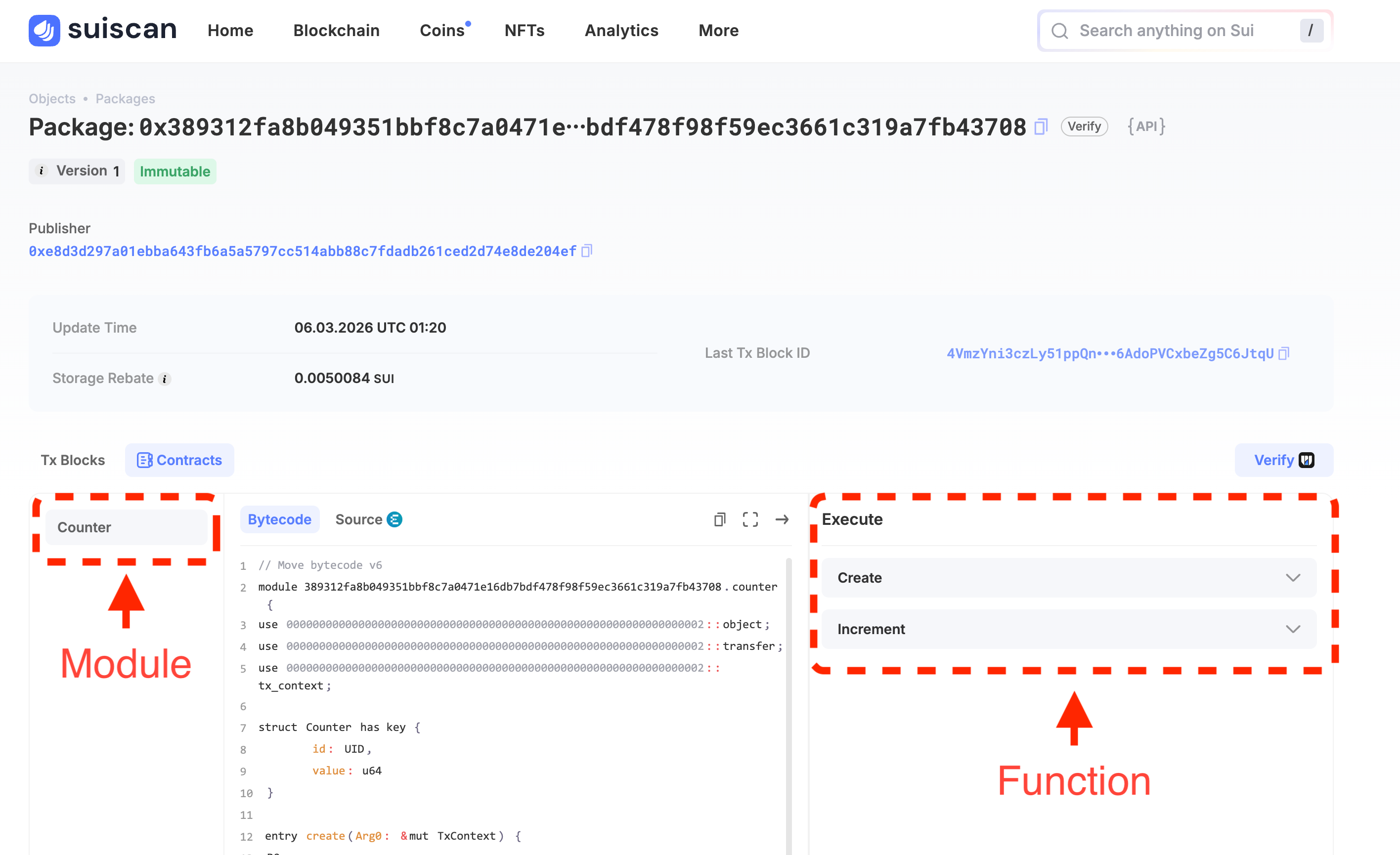
Click the counter module to expand it. You'll see a list of functions:
create— creates a Counter object and sends it to your wallet (entry fun)increment— increments the counter by 1 (entry fun)get_value— returns the current counter value (public fun)
In Suiscan's UI, only entry fun functions show an Execute button. get_value is a public fun, so it has no button — it's intended to be called programmatically from the SDK or other Move modules. You'll verify the value in step 4.
First, run create to get a Counter object.
Click the Execute button next to create. (If your wallet isn't connected, click Connect and connect with Slush.)
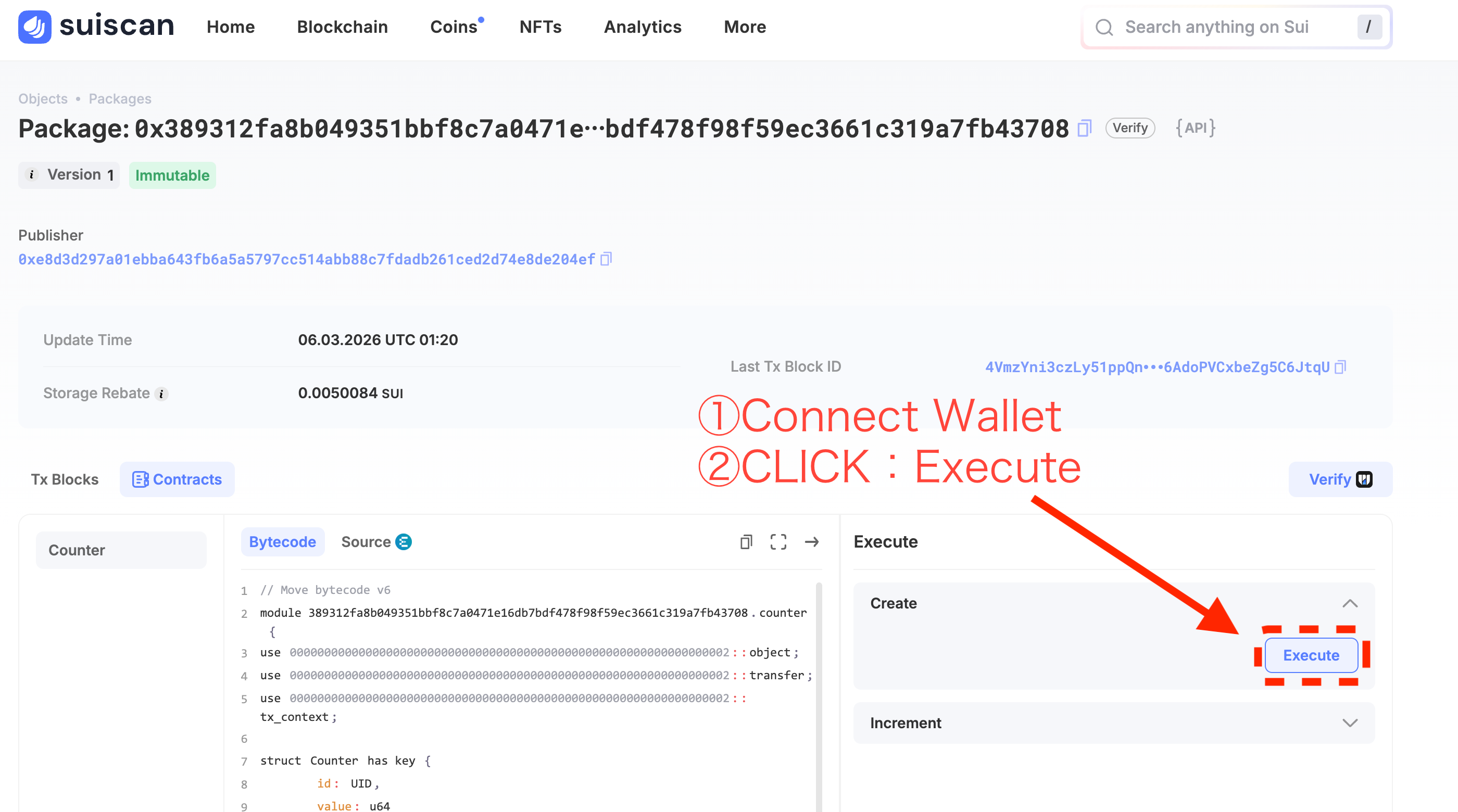
create takes no arguments (TxContext is provided automatically). The wallet signing popup appears right away.
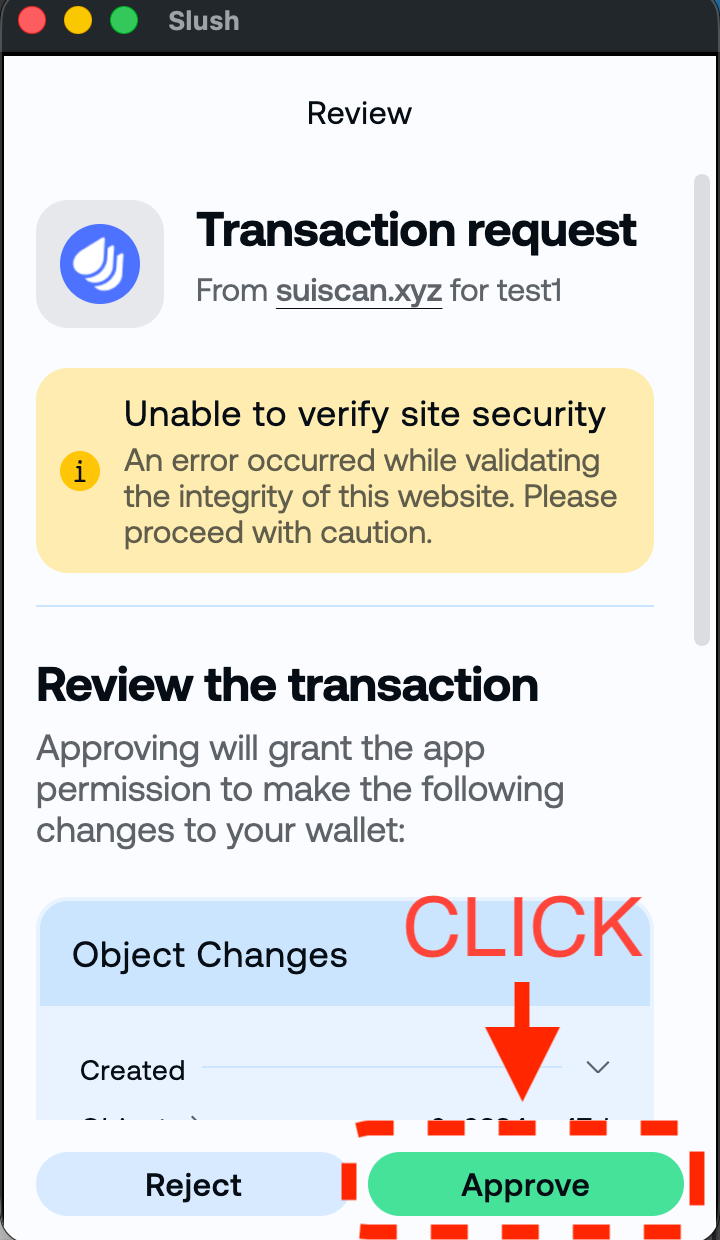
Review the details in Slush and click Approve.
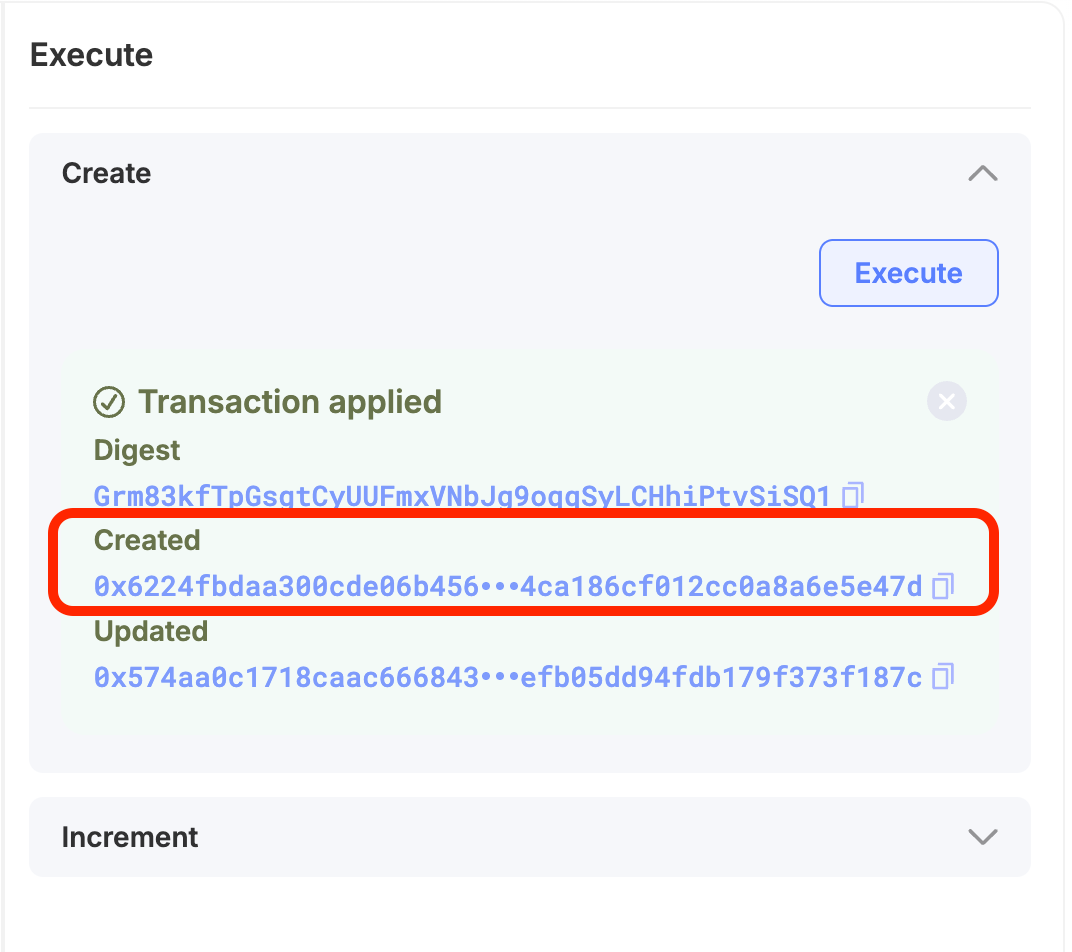
Once the transaction succeeds, Transaction applied appears in the Execute panel. Under Created you'll see the Counter object's ObjectID (0x...).
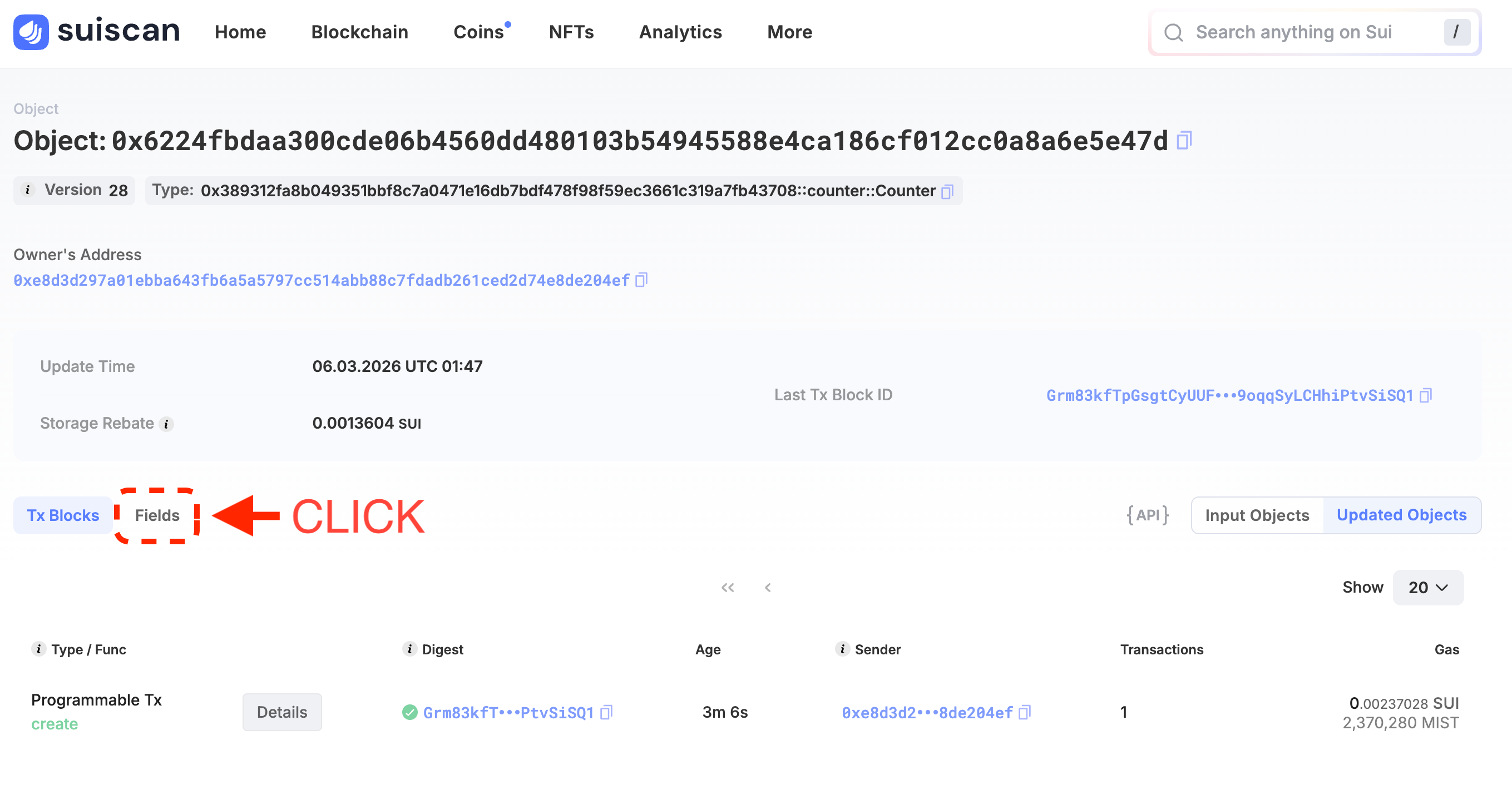
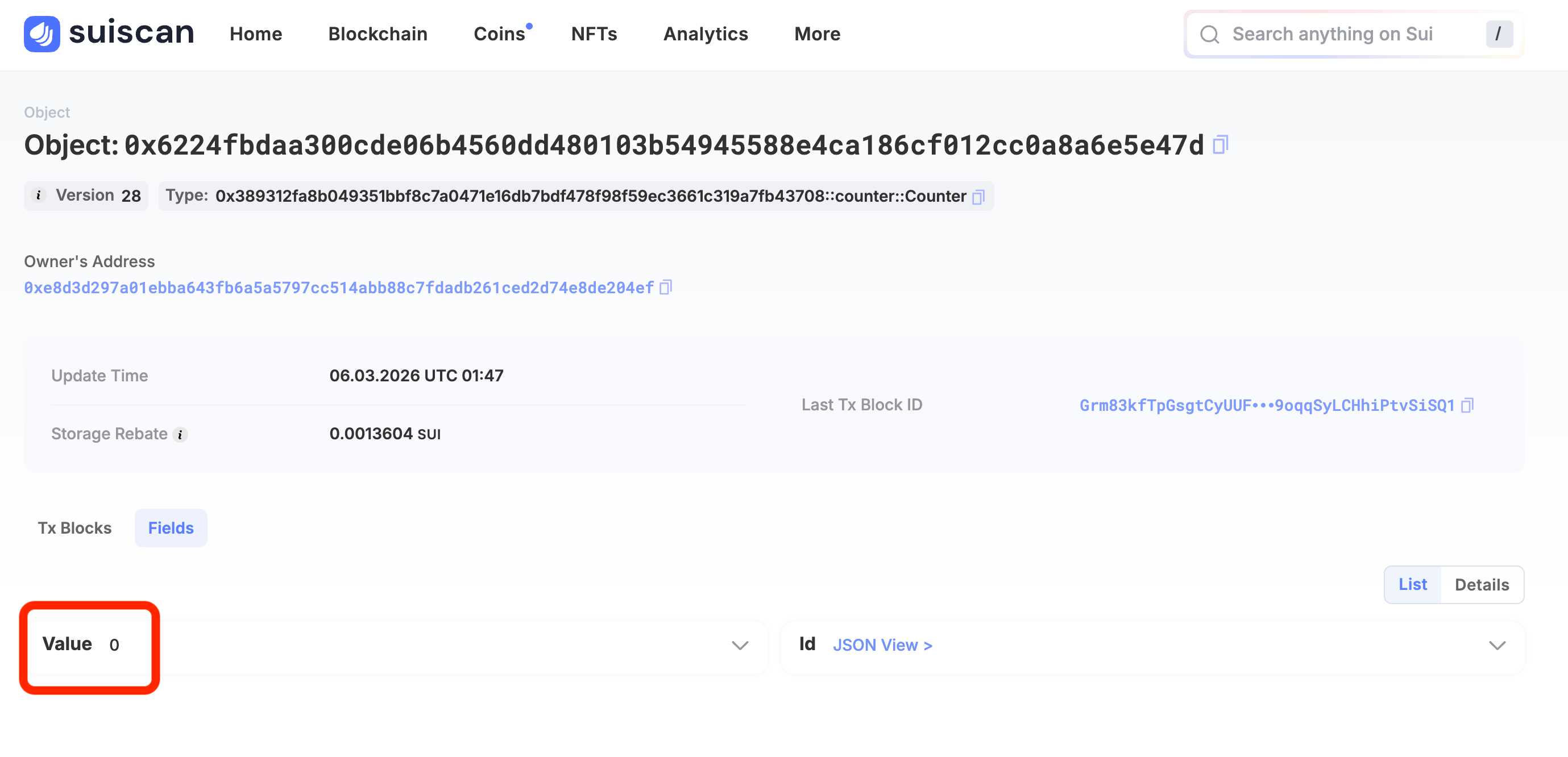
Click the 0x... address under Created to open the Counter object's detail page. It's handy to right-click → Open in new tab so you can come back later. Click the Fields section to expand it — you'll see value: 0, the initial value right after creation.
You'll need the ObjectID in the next step. Copy it using the copy icon.
3. Increment the Counter with increment
Go back to the Package page in Suiscan (use your browser's back button or search for the PackageID again) and expand the counter module.
This time click the Execute button next to increment.
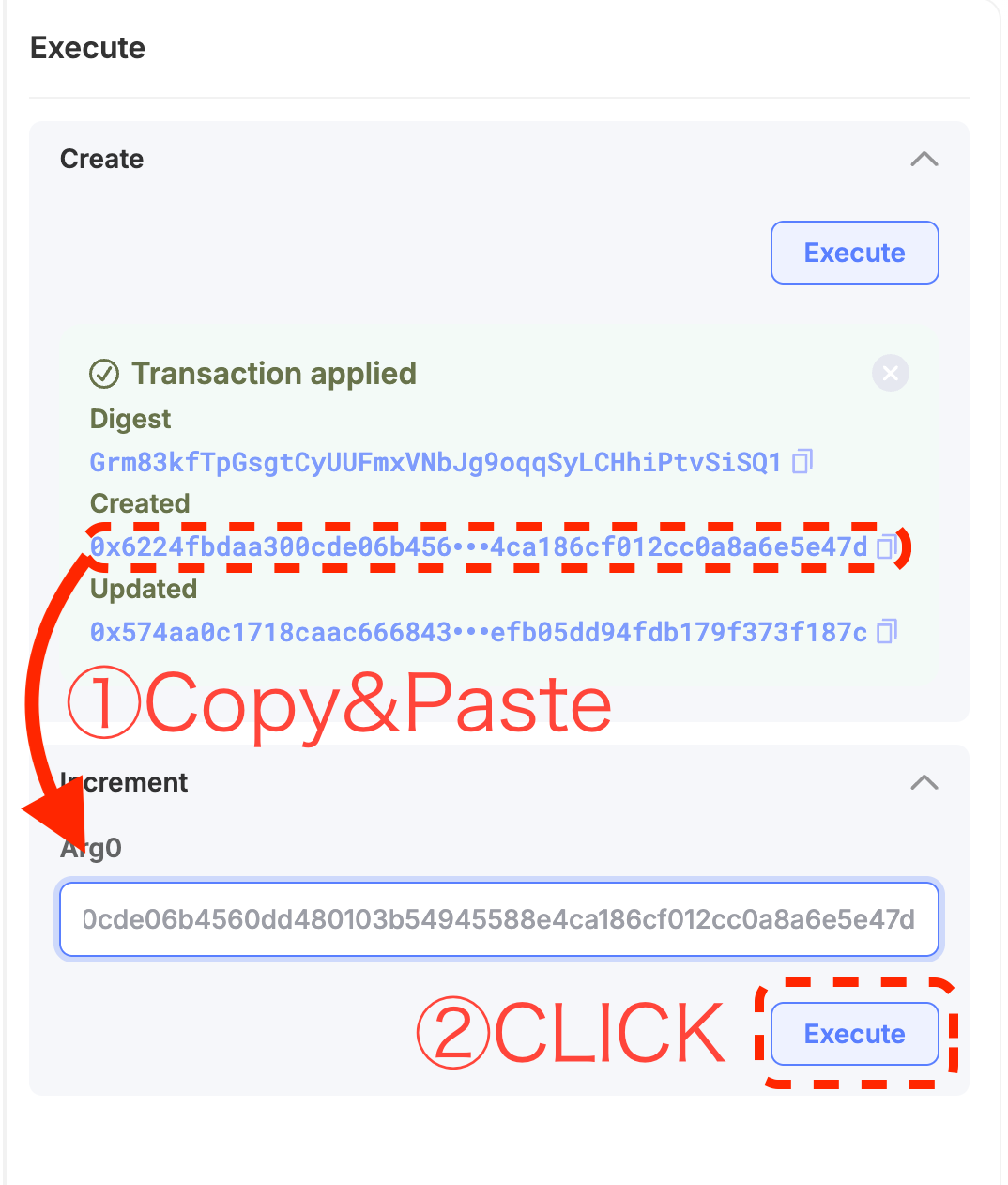
increment takes one argument:
| Argument | Type | Value to enter |
|---|---|---|
counter | Counter (object ID) | The Counter ObjectID you copied in step 2 |
Paste the Counter ObjectID into the input field.
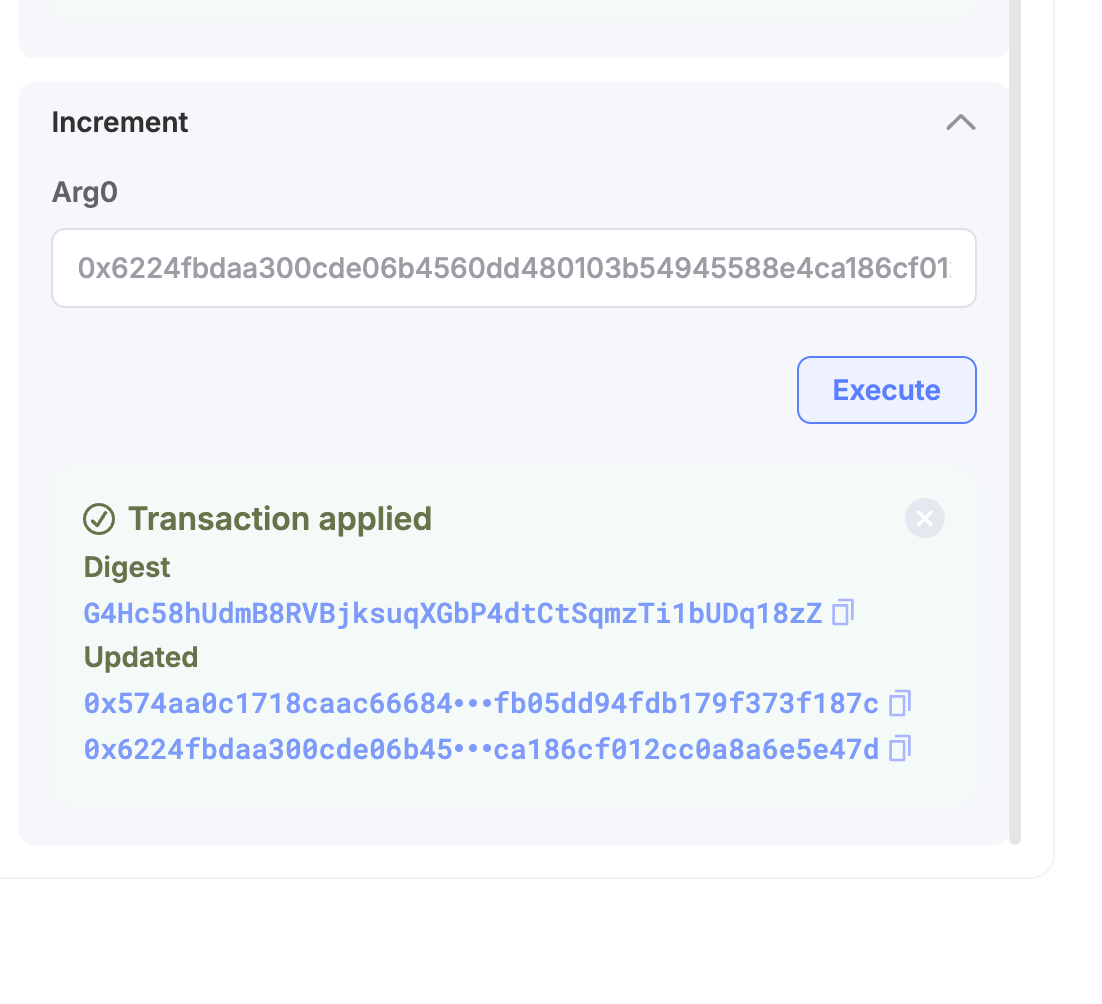
Click Execute and Approve in the Slush popup.
Once the transaction succeeds, you're done.
4. Verify the Value Changed in the Counter Object
Return to the Counter object page (or search for its ObjectID again) and check the Fields section.
The value should have changed from 0 to 1.
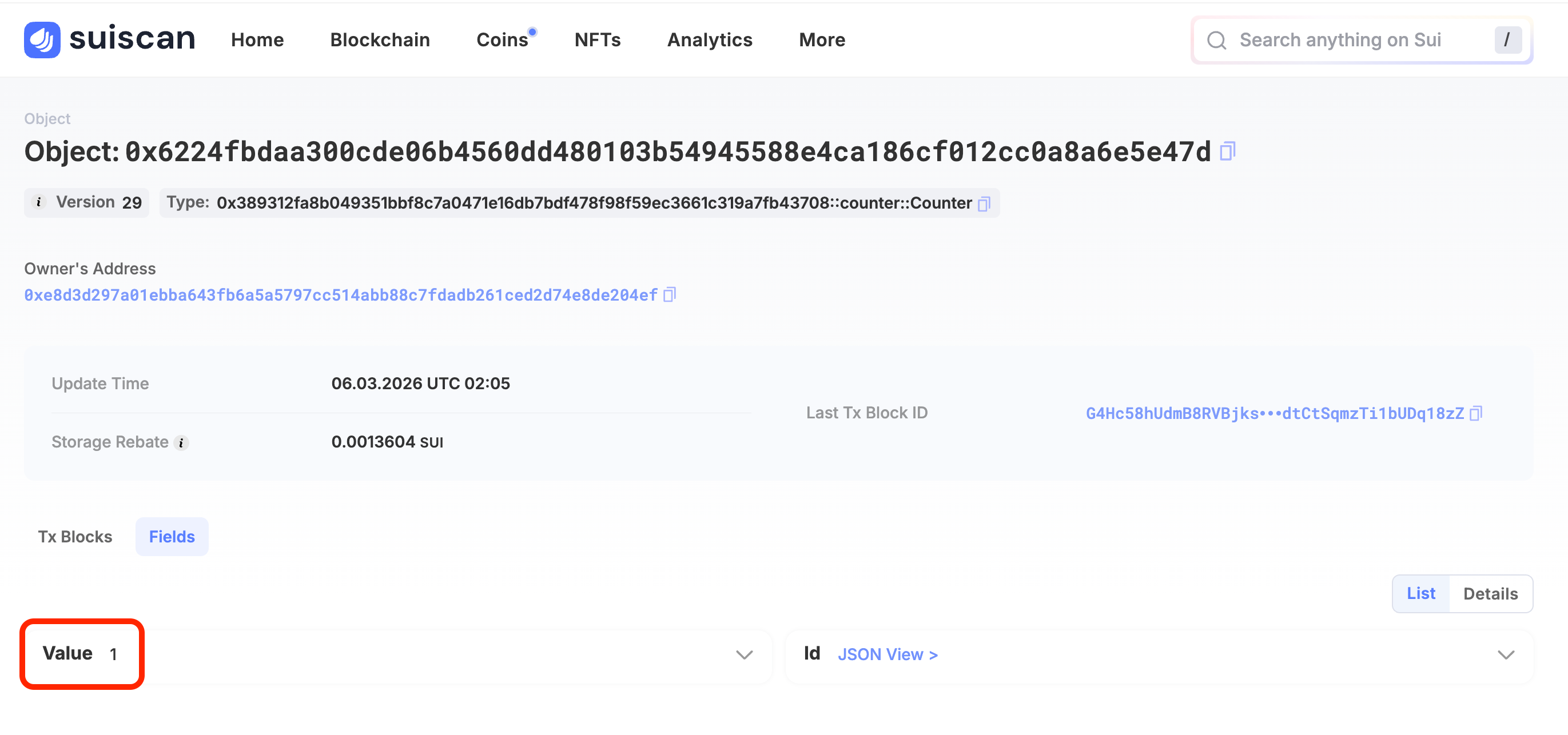
The value that was 0 in step 2 is now 1 after running increment.
If you kept the page open, refresh your browser (F5 or ⌘R). Without a refresh, you may still see the old cached value.
Success Checklist
- Searched for the PackageID in Suiscan and opened the Package page
- Ran
createand verified the Counter object withvalue: 0 - Ran
incrementand incremented the counter - Confirmed the Counter object's
valuechanged to1
What You Did in This Lesson
- Searched for a contract Package by PackageID in Suiscan
- Ran
createto create a Counter object - Passed an ObjectID as an argument to
incrementand ran it - Verified the value change directly on the Counter object's Fields
- Successfully called a contract from the Explorer