Transfer via CLI
In this lesson, you'll learn how to send SUI tokens to another address using the Sui CLI. This is one of the most fundamental operations on a blockchain. With just one command, you can transfer tokens—it's not difficult!
While wallets provide a user-friendly interface, understanding CLI transfers allows you to:
- Automate transactions with scripts
- Test and debug your applications
- Gain a deeper understanding of transaction structure
Prerequisites
Before starting this lesson, make sure you have completed the following:
- Sui CLI installed (verify with
sui --version) — Install Sui CLI - CLI connected to Devnet (
sui client active-envreturnsdevnet) — Connect CLI to Devnet - Test SUI obtained from Faucet (check balance with
sui client gas) — Get Test Tokens
Steps
1. Check your current address and balance
First, let's check your current address and SUI balance.
sui client active-address
You'll see your address displayed like this:
0x1234abcd...
Next, check your balance:
sui client gas
You'll see output like this:
╭────────────────────────────────────────────────────────────────────┬────────────────────┬──────────────────╮
│ gasCoinId                                                          │ mistBalance (MIST) │ suiBalance (SUI) │
├────────────────────────────────────────────────────────────────────┼────────────────────┼──────────────────┤
│ 0xabcd1234...                                                      │ 1000000000         │ 1.00             │
╰────────────────────────────────────────────────────────────────────┴────────────────────┴──────────────────╯
1 SUI = 1,000,000,000 MIST (1 billion MIST). MIST is the smallest unit of SUI, similar to satoshi for Bitcoin.
2. Get the recipient address
For the recipient, we'll use your Slush wallet address that you created in Install Slush Wallet.
The CLI address (generated in Connect CLI to Devnet) and the address you first created in Slush are different addresses. In this lesson, we'll send SUI from the CLI address to the Slush wallet address.
How to find your Slush wallet address:
- Open the Slush browser extension
- Click the user icon ① in the bottom right, then select "Manage all" ②
- Switch to the account you created in Install Slush Wallet (not the CLI account you imported in Connect CLI to Devnet)
- Copy the address (
0x...)
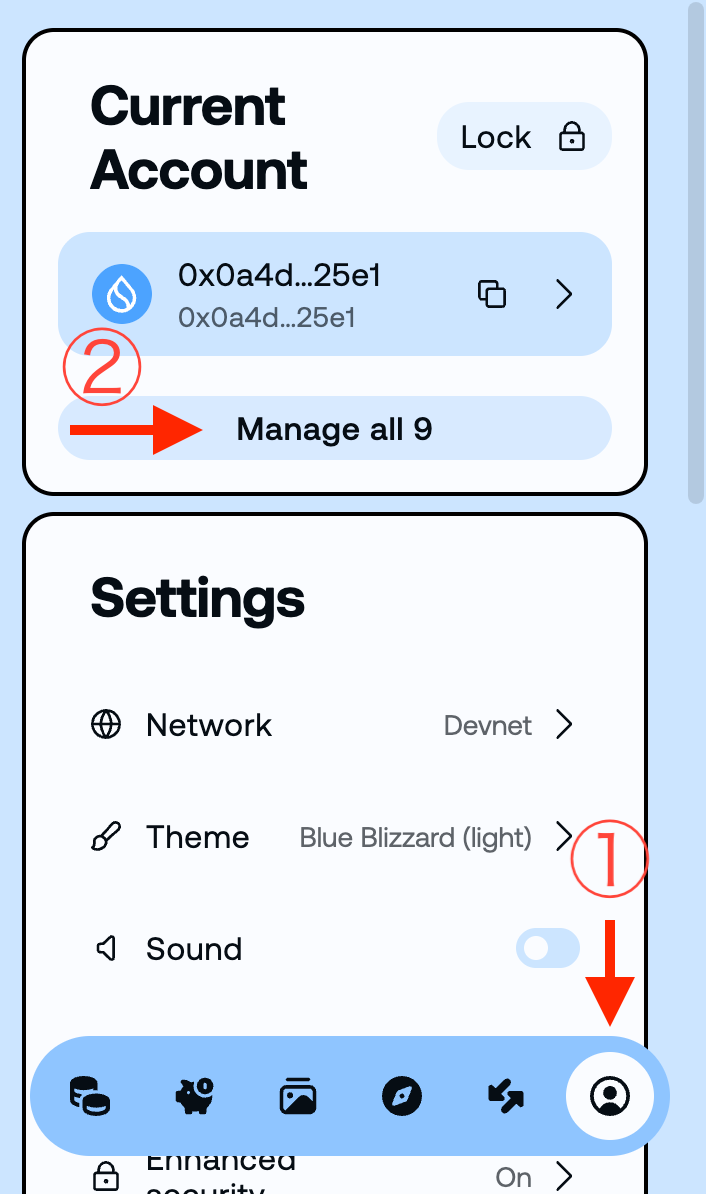
If you have multiple accounts in Slush, you can switch between them using the user icon in the bottom right. The account that received SUI from the Faucet in Get Test Tokens (CLI address) will have a balance, while the account you first created in Install Slush Wallet should have a balance of 0.
3. Transfer SUI using PTB
Now let's send some SUI! Replace <RECIPIENT_ADDRESS> with the recipient's address:
sui client ptb \
  --split-coins gas "[1000000000]" \
  --assign coins \
  --transfer-objects "[coins]" @<RECIPIENT_ADDRESS> \
  --gas-budget 10000000
--split-coins gas "[1000000000]": Splits 1000000000 MIST (= 1 SUI) from the gas coin. Using thegaskeyword lets the CLI automatically select which coin to use--assign coins: Assigns the split coins to a variable calledcoins--transfer-objects "[coins]" @<ADDRESS>: Transferscoinsto the specified address (note the@before the address; don't include the<>, replace with the actual address)--gas-budget: The maximum gas fee (in MIST). Only the amount actually used is consumed, and the rest is returned (e.g., 10000000 MIST = 0.01 SUI)
PTB is a powerful feature of Sui that allows you to combine multiple operations into a single transaction. In this case, we're performing two operations—"split coins → transfer"—in one transaction.
When you run the command, you'll see detailed output like this:
Transaction Digest: AbC123xYz...
╭─────────────────────────────────────────────────────────────────────────────────────────────────╮
│ Transaction Data                                                                                │
├─────────────────────────────────────────────────────────────────────────────────────────────────┤
│ Sender: 0x1234abcd...                                                                           │
│ ...                                                                                             │
The Transaction Digest is the unique ID of your transaction. Make sure to copy this!
4. Verify the transaction
Let's confirm that the transaction was successful.
Check in Explorer
You can verify on Suiscan:
- Go to Suiscan (Devnet)
- Make sure you're on Devnet
- Paste the Transaction Digest in the search box
- Confirm that the transaction shows "Success"
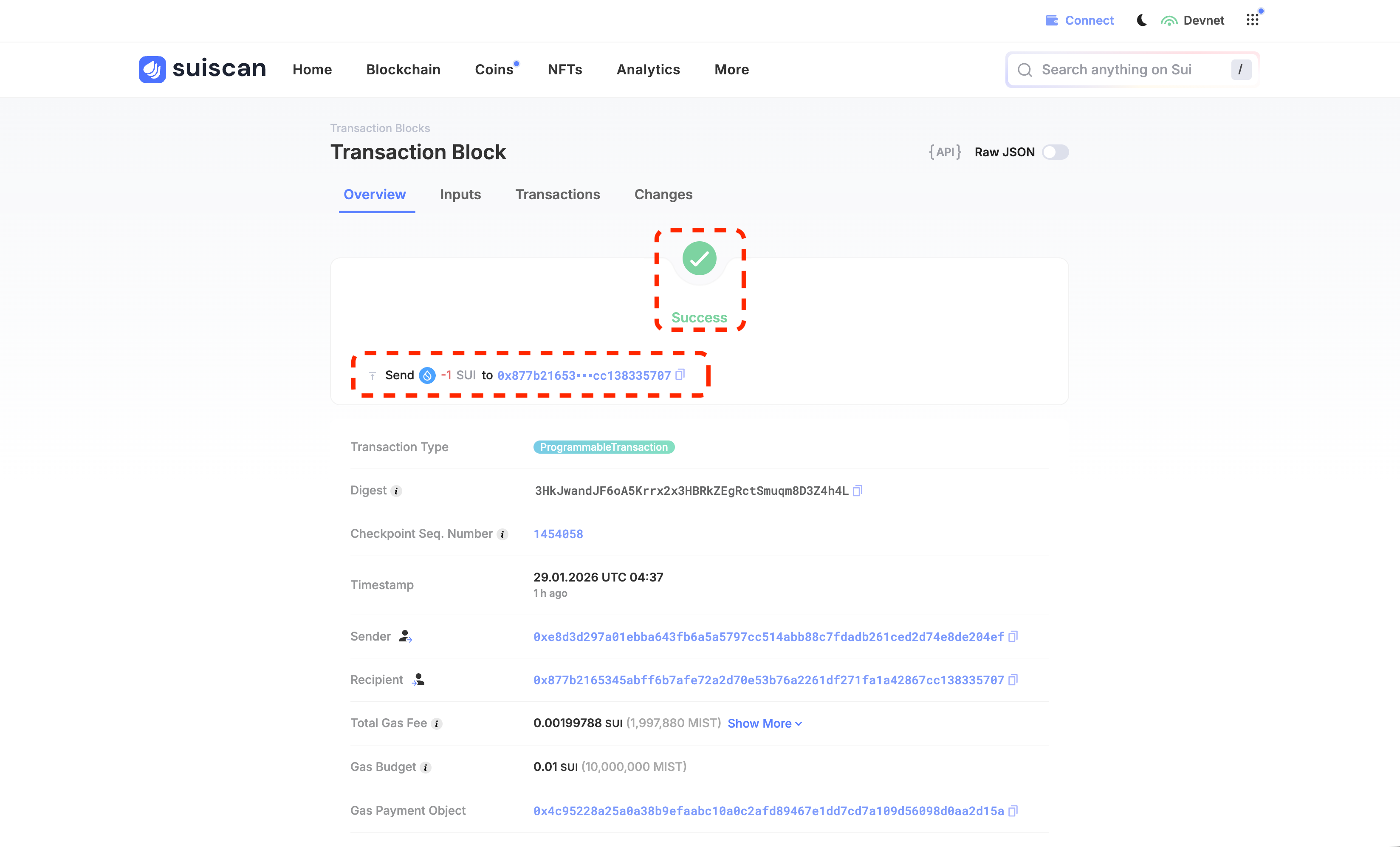
For more details on reading transactions in Explorer, see Read Transactions in Explorer.
Check in PTB Builder
You can use the Viewer feature in PTB Builder to visually inspect your transaction:
- Go to PTB Builder (ptb.wal.app)
- Set the network to DEVNET and connect Slush via "Connect Wallet"
- Select "Viewer"
- Paste the Transaction Digest in the search box
- The transaction structure (SplitCoins → TransferObjects) will be displayed visually
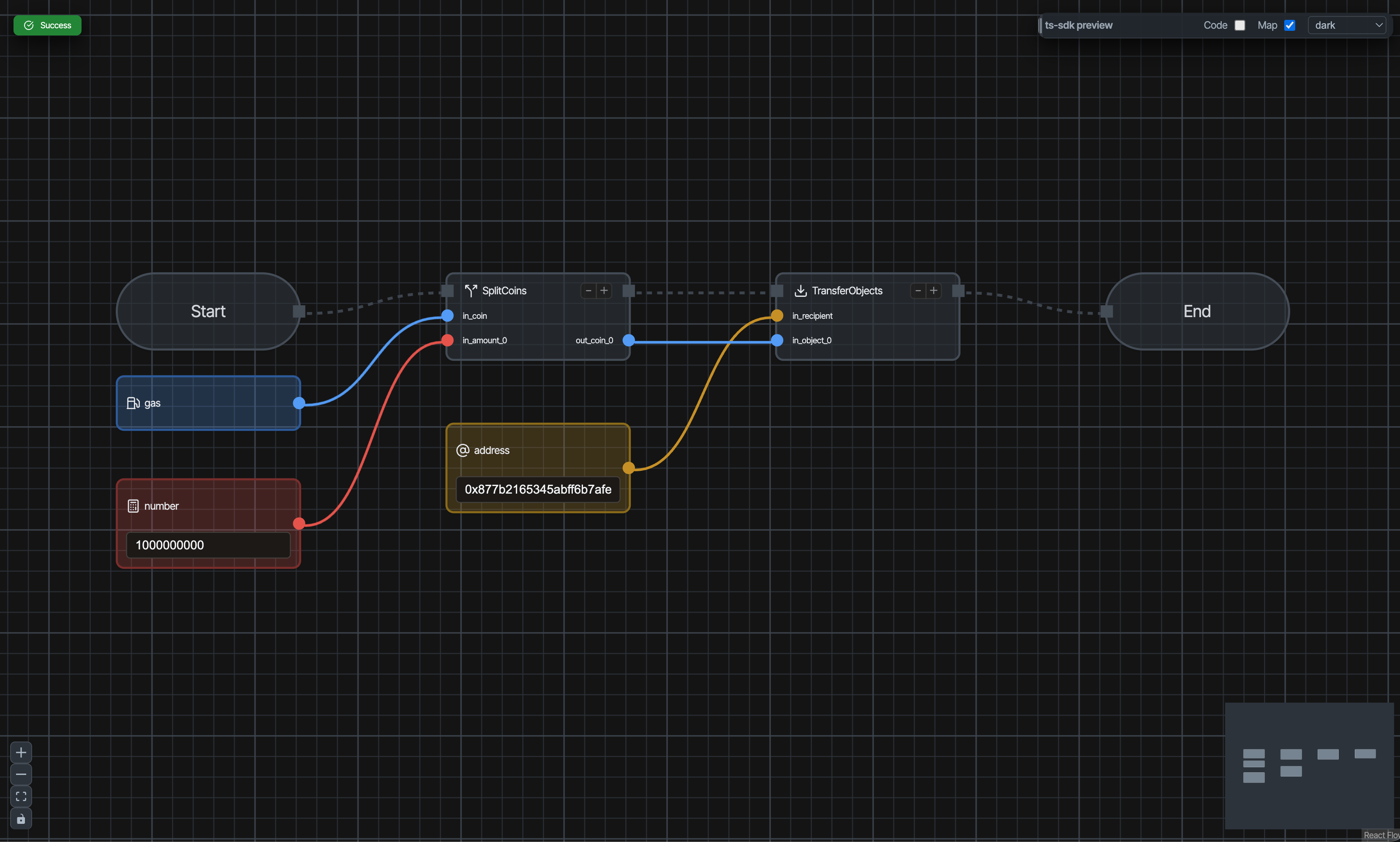
For more details on using PTB Builder, see Connect Wallet to PTB Builder.
5. Check balance changes
Finally, let's verify the transfer by checking the balances of both addresses.
CLI address (sender) balance:
sui client gas
Confirm that the balance has decreased from before (by the transfer amount + gas fee).
Slush wallet address (recipient) balance:
Open Slush and switch to the account you created in Install Slush Wallet. You should see the transferred SUI reflected in the balance.
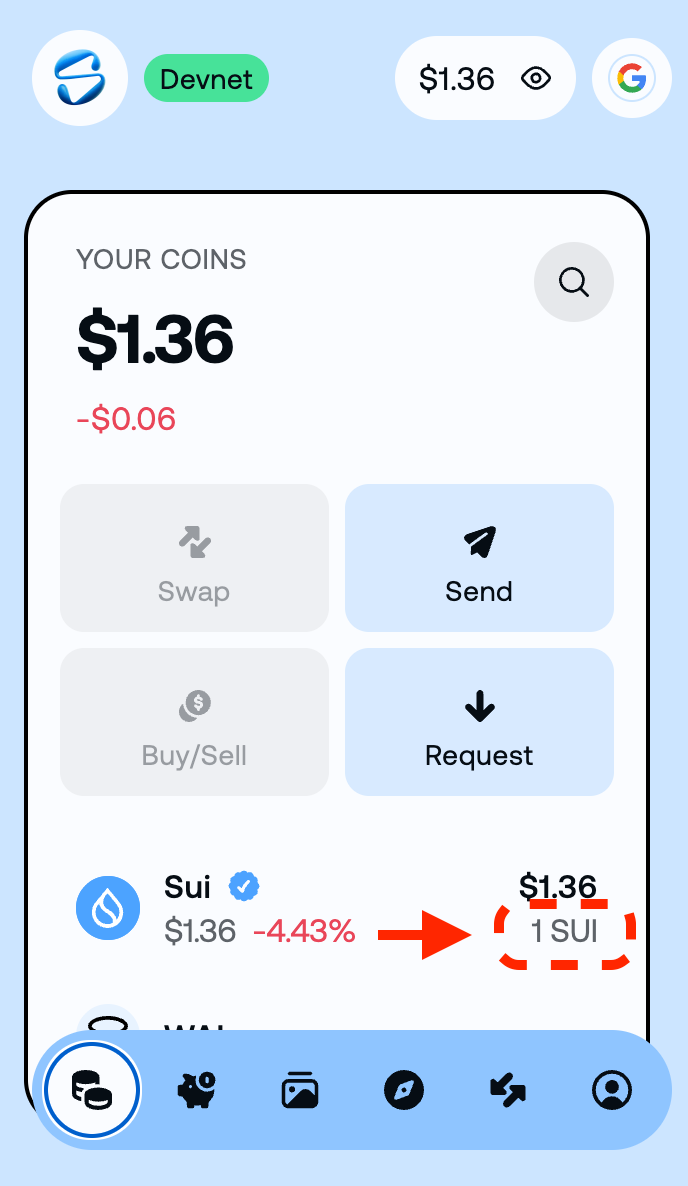
On Devnet, transactions usually reflect within seconds, but occasionally it may take a bit longer. Try reloading the Slush screen.
Success Criteria
You've completed this lesson if you can:
- Successfully execute a transfer using
sui client ptb - Obtain the
Transaction Digest - Verify the transaction status in
Explorer (Suiscan)/PTB Builder - Confirm balance changes on both the sender and recipient sides
Common Issues
"Insufficient gas" error
Your account doesn't have enough SUI to pay for gas. Get additional tokens from the Faucet.
"Invalid address" error
- Make sure the recipient address is correct (it should start with
0x) - Check that there are no extra spaces or characters
Transaction shows "Failed"
- Check the error message in the transaction details
What You Did in This Lesson
- Learned how to check your address and balance with CLI
- Learned how to transfer SUI using PTB (
sui client ptb) - Understood the relationship between MIST and SUI
- Verified transactions using CLI and Explorer