Install Slush Wallet
The first step to using Sui is installing a wallet. It's straightforward—just follow the on-screen instructions and you'll be done in about 5 minutes.
What is Slush Wallet?
Slush (formerly "Sui Wallet") is a browser wallet for Sui, made by Mysten Labs. With Slush, you can:
- Create and manage accounts (addresses)
- Sign transactions
- Connect to dApps (decentralized apps)
- Switch between networks (Mainnet/Testnet, etc.)
There are several wallets for Sui, but this tutorial uses Slush. It's close to an official wallet and supports Sui-specific features like sponsored transactions.
Install the Chrome Extension
First, add Slush to Chrome.
-
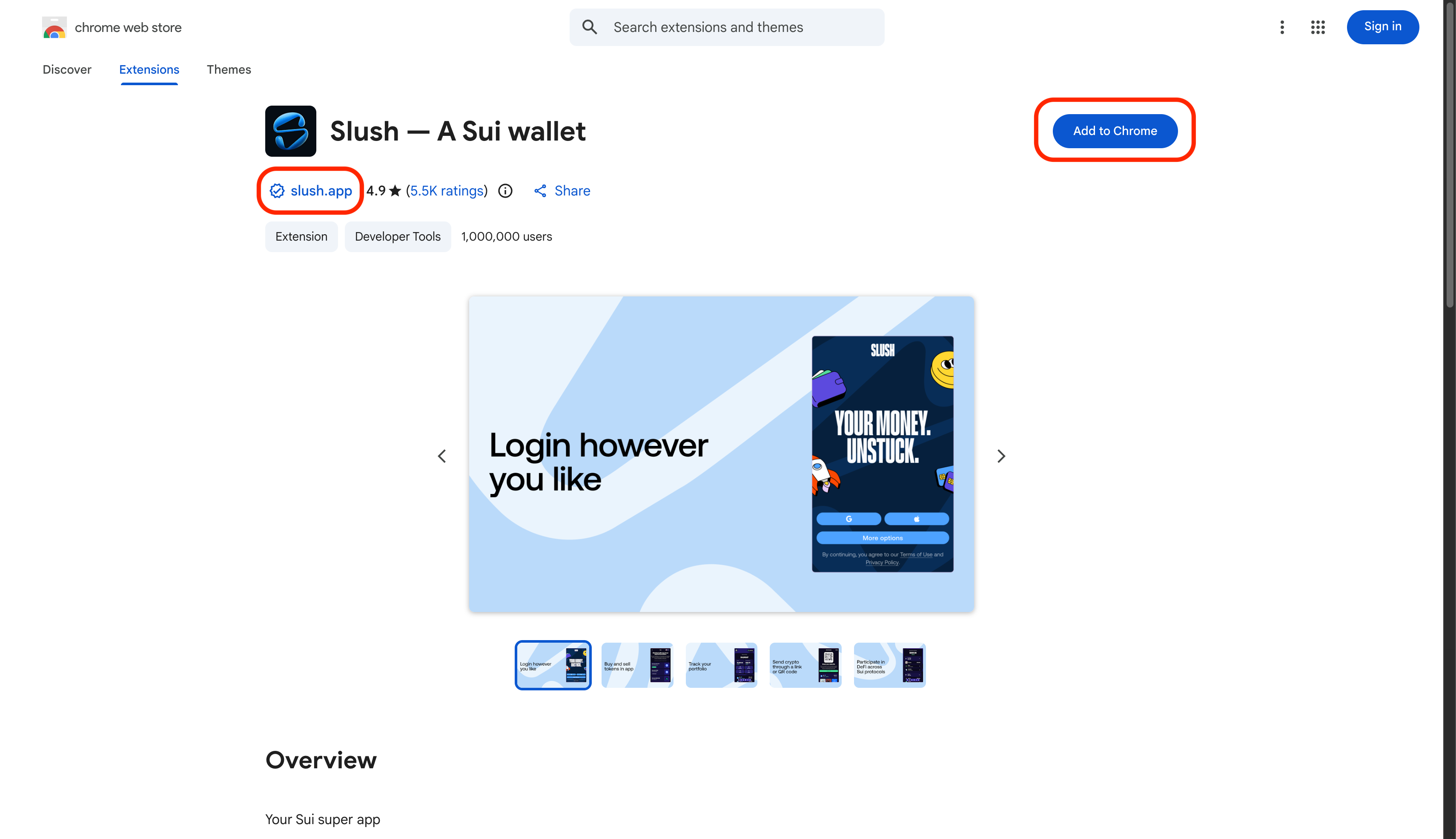
Go to the Chrome Web Store
-
Make sure the developer is "✓ slush.app", then click "Add to Chrome"
-
Click "Add extension" in the confirmation dialog
Pin it to your toolbar for quick access.
Create an Account
Slush has two methods: "Social Login" (Google/Apple/Facebook/Twitch) and the recovery phrase method. Here, we'll use the recovery phrase method (Passphrase account) since it's easier to migrate to other wallets later.
-
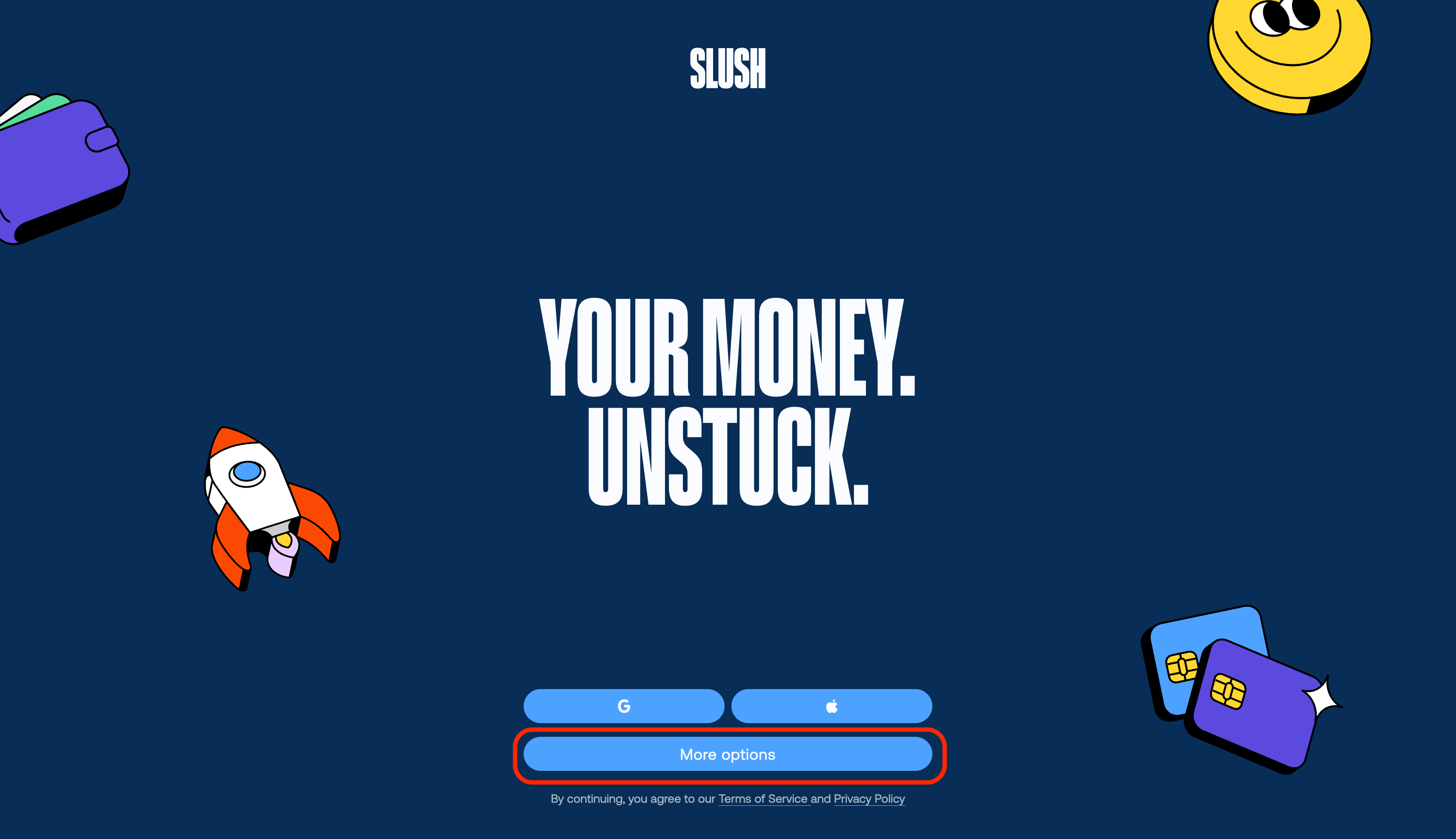
After installation, the Slush welcome screen opens automatically
-
Click "More options" at the bottom
-
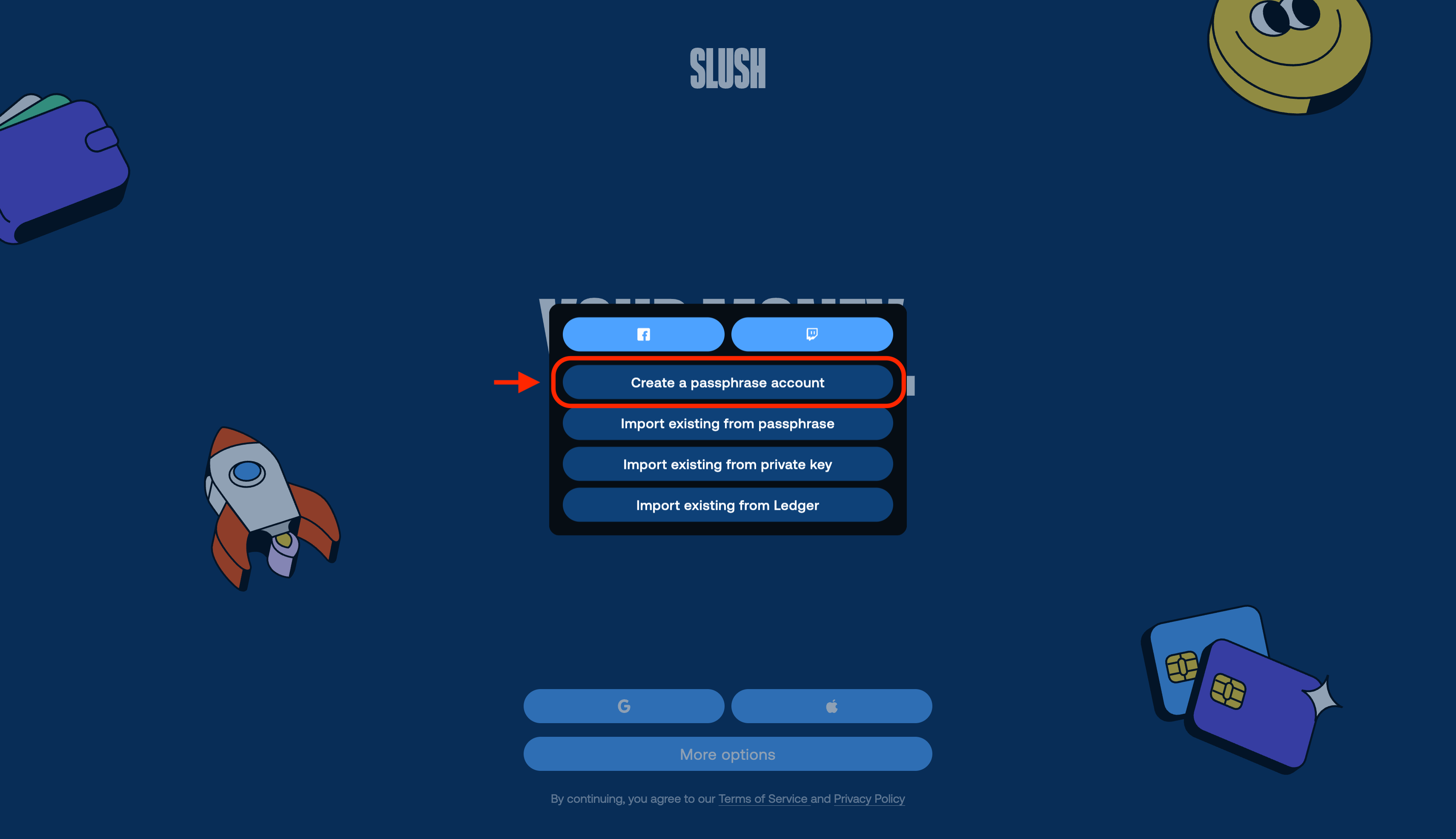
Select "Create a passphrase account"
Save Your Recovery Phrase
-
You'll see 12 English words (your recovery phrase, also called seed phrase)
-
Write them down on paper and store them safely
Your recovery phrase (seed phrase) is the "key" to your wallet.
- Never share it with anyone.
- Do not take screenshots or store it in chats, emails, or cloud notes.
- Write it down on paper and store it offline in a safe place.
Set Up Password and Security
-
Set a password
- Use alphanumeric characters + symbols, and make it as long as possible
-
The
Protect your wallet with additional securityscreen appears.
Configure as you like and click "Next"- Unlock your wallet: Auto-lock timeout (15min to 1 day)
- Confirm transactions: Require password for each transaction
-
Once setup is complete, the wallet main screen will appear.
Verify Success
Open Settings in your wallet—if you see your address, you're all set.
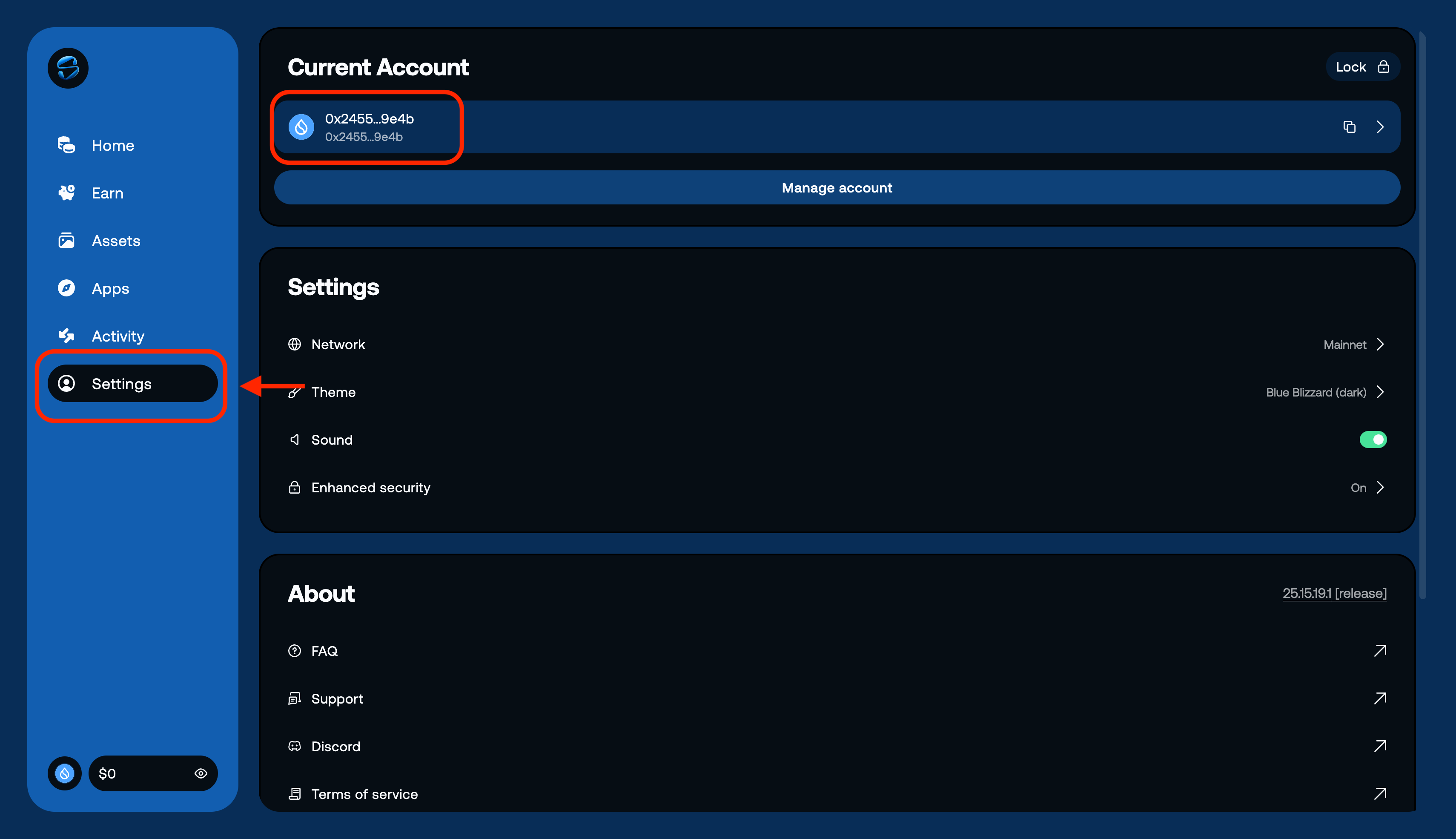
Your address is a long string starting with 0x (e.g., 0x1234...abcd).
Click the copy button next to your address to copy it. You'll need it in later lessons, so keep it handy.
What You Did in This Lesson
- Installed Slush wallet on Chrome
- Created a new account
- Backed up your recovery phrase
- Confirmed your wallet address